

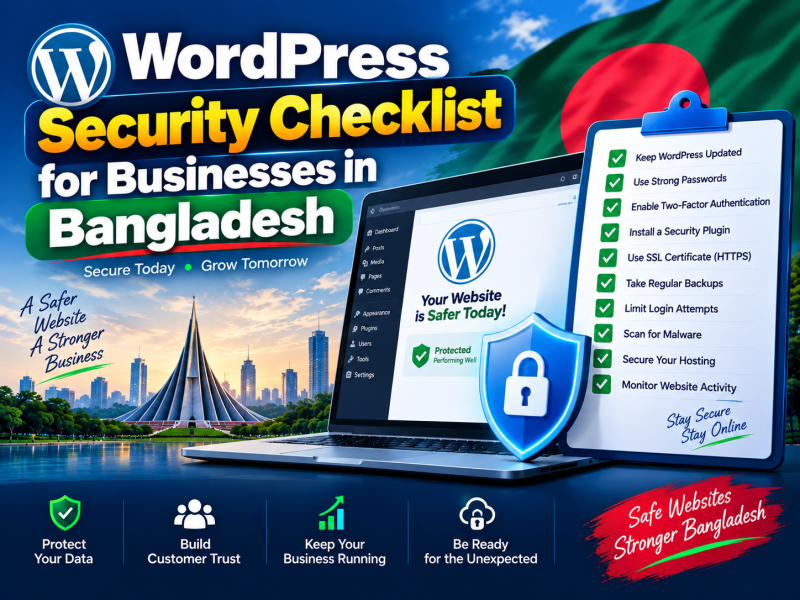
WordPress powers a very large share of the world's websites, including thousands of company sites, news portals and online shops in Bangladesh. That popularity makes it a constant target. The attackers are rarely people choosing your business specifically; they are automated bots scanning millions of sites for weak passwords, outdated plugins and known vulnerabilities.
The good news is that most WordPress hacks are preventable. This checklist covers the practical steps that stop the majority of attacks, explains why each one matters, and tells you what to do if your site has already been compromised.
Why WordPress sites get hacked
- Outdated plugins and themes with publicly known security holes — by far the most common cause.
- Nulled (pirated) themes and plugins downloaded from unofficial sites, which often contain hidden backdoors.
- Weak or reused passwords guessed by automated login attempts.
- Insecure hosting without isolation, firewalls or malware scanning.
- Too many administrator accounts, including old accounts of staff or freelancers who no longer work with you.
1. Keep everything updated
Updates fix security vulnerabilities as soon as they are discovered. Once a vulnerability is published, bots begin exploiting it within days.
- Update WordPress core, themes and plugins regularly — at least weekly for active sites.
- Enable automatic updates for minor core releases and for trusted plugins.
- Use a currently supported PHP version on your hosting account.
- Take a backup before major updates, and test important pages afterwards.
2. Never use nulled themes or plugins
It is tempting to download a premium theme "for free" from a sharing site. Those files are frequently modified to include malware that sends spam, redirects your visitors to scam sites or gives attackers permanent access. The cost of cleaning a hacked site and repairing your reputation is far higher than the price of a legitimate licence. Buy premium products from the original developer or official marketplaces, and download free ones from WordPress.org.
3. Remove what you do not use
Every installed plugin and theme is code that could contain a vulnerability — even if it is deactivated. Delete unused plugins and themes completely. Keep one default theme as a fallback, plus the theme you actually use.
4. Use strong passwords and two-factor authentication
- Use a long, unique password for every administrator account, generated and stored in a password manager.
- Enable two-factor authentication (2FA) with an authenticator app for all users who can publish or change settings.
- Never use "admin" as a username.
- Use different passwords for WordPress, your hosting control panel, your domain account and your email.
5. Limit login attempts
Bots try thousands of password combinations against wp-login.php. Limit failed login attempts and temporarily block IP addresses that exceed the limit. Many security plugins and hosting firewalls do this automatically. You can also add CAPTCHA to the login form or restrict access to the admin area if your team works from fixed locations.
6. Give users the minimum role they need
WordPress has roles for a reason. A writer does not need to be an administrator.
| Role | Suitable for |
|---|---|
| Administrator | The site owner and one trusted technical person |
| Editor | Staff who manage and publish everyone's content |
| Author | Writers who publish their own posts |
| Contributor | Writers whose posts must be reviewed before publishing |
| Shop Manager | WooCommerce staff who handle orders and products |
Review users every few months and remove accounts for people who no longer work with you, including former freelancers and agencies.
7. Always use HTTPS
An SSL certificate encrypts passwords and customer data between the browser and your server. Install a certificate (most hosts provide a free one), redirect all HTTP traffic to HTTPS, and make sure your WordPress Address and Site Address settings use https://.
8. Harden WordPress settings
- Disable file editing in the dashboard by adding
define('DISALLOW_FILE_EDIT', true);towp-config.php. If an attacker gets into an admin account, they cannot edit theme files directly. - Protect wp-config.php — it contains your database password. Correct file permissions and server rules should prevent public access.
- Set sensible file permissions, typically 644 for files and 755 for folders, never 777.
- Disable XML-RPC if you do not use the WordPress mobile app or services that depend on it, as it is often abused for login attacks.
- Change the database table prefix from the default when installing new sites.
9. Use a web application firewall and malware scanning
A web application firewall (WAF) blocks malicious requests before they reach WordPress. You can use a security plugin with firewall features, a hosting-level firewall, or a service like Cloudflare in front of your site. Combine it with regular malware scanning, which detects modified core files, injected code and known malicious files. Many quality hosting providers include server-level malware scanning.
10. Back up correctly
Backups are your final safety net when everything else fails.
- Back up both files and the database.
- Keep backups off the server as well — for example in Google Drive or cloud storage — because a hacked server can have its local backups deleted.
- Keep several versions, so you can restore to a date before an infection started.
- Test restoring a backup at least once. A backup you cannot restore is not a backup.
11. Choose secure hosting
Hosting security protects you from problems you cannot fix inside WordPress. Look for account isolation, server firewalls, brute-force protection, malware scanning, automatic SSL, regular server updates and backups with easy restore.
12. Monitor your site
- Set up uptime monitoring so you know immediately when the site goes down.
- Add your site to Google Search Console; Google notifies you if it detects malware or hacked content.
- Watch for warning signs: unknown admin users, strange redirects on mobile, spam links in search results, sudden traffic drops or new files you did not upload.
WooCommerce shops need extra care
Online shops store customer names, phone numbers and addresses, and handle payments. In addition to everything above:
- Use only official, well-maintained payment gateway plugins.
- Never store card details yourself; let the payment gateway handle them.
- Restrict Shop Manager access to trusted staff.
- Keep order and customer data backups encrypted and private.
What to do if your WordPress site is hacked
- Stay calm and act quickly. Put the site in maintenance mode if it is redirecting visitors or showing harmful content.
- Change all passwords — WordPress users, hosting control panel, FTP/SFTP, database and email.
- Contact your hosting provider. They can scan the account, check server logs and help identify how the attacker got in.
- Restore a clean backup from before the infection, if you have one, then update everything immediately.
- If there is no clean backup, reinstall WordPress core files, replace themes and plugins with fresh copies from official sources, and remove unknown files and users. Professional cleaning is often faster and safer.
- Find and fix the cause — an outdated plugin, nulled theme or weak password — or the site will be reinfected.
- Request a review in Google Search Console if your site was flagged, after it is clean.
Choosing safe plugins
Because outdated or poorly written plugins are the most common entry point for attackers, choosing plugins carefully prevents problems before they start. Before installing any plugin, check:
- Last updated date. A plugin that has not been updated for a long time may not be compatible with current WordPress versions or may have unpatched issues.
- Active installations and ratings. Widely used plugins with good ratings are more likely to be maintained and tested.
- Support activity. Look at whether the developer responds to support questions and security reports.
- Necessity. Ask whether the feature can be done without a plugin, or with a plugin you already use.
- Source. Install only from WordPress.org, reputable marketplaces or the developer's official website.
Security when working with freelancers and agencies
Many Bangladeshi businesses hire freelancers or agencies to build and maintain their websites. Protect your business with a few simple rules:
- Create a separate account for each developer instead of sharing your own password.
- Give the minimum access they need, and remove it when the project ends.
- Make sure the domain, hosting and WordPress administrator accounts are owned by your company.
- Ask for a full backup and a list of installed plugins and licences at handover.
- Confirm that only genuine, licensed themes and plugins were used.
A monthly security routine
- Update core, plugins and themes.
- Review administrator and editor accounts.
- Check malware scan results and security plugin logs.
- Confirm the latest backup exists and is stored off the server.
- Check Search Console for security issues.
Conclusion
WordPress is secure enough for businesses of every size when it is maintained properly. Keep everything updated, avoid nulled software, use strong passwords with two-factor authentication, limit user roles, run behind a firewall with malware scanning, and keep tested off-site backups. These habits stop the vast majority of attacks.
W3 SOFT hosting includes free SSL, malware scanning and backup tools, and our team builds and maintains secure WordPress websites for businesses across Bangladesh. Contact us if you need help securing or recovering a site, or explore our WordPress development service.


Discussion 0
No comments yet — start the conversation.