

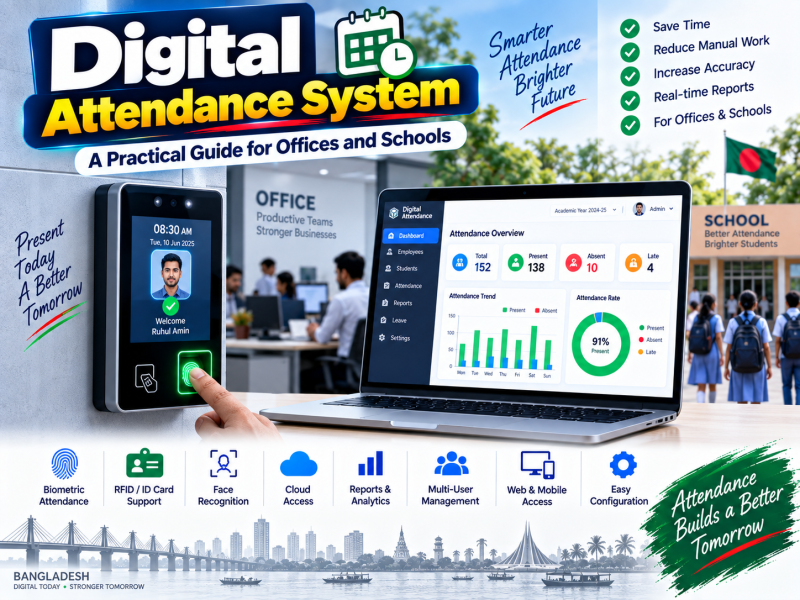
Paper registers and signature sheets are still common in offices, factories, schools and hospitals across Bangladesh. They are easy to start with, but they are also easy to manipulate, slow to total at the end of the month and useless for spotting patterns such as repeated late arrivals. A digital attendance system — a biometric or card device connected to attendance software — records every entry automatically and turns attendance into reliable data for payroll and management.
This guide explains how digital attendance works, how to choose a device, how to install and connect it, how software processes the data, and how schools use attendance with guardian SMS. ZKTeco devices are used as examples because they are widely available in Bangladesh, but the principles apply to most brands.
How a digital attendance system works
- Enrolment. Each employee or student is registered on the device with a user ID and a fingerprint, face template, RFID card or PIN.
- Punching. When the person arrives or leaves, they place a finger, show their face or tap a card. The device records the user ID with the date and time.
- Data transfer. Attendance records move from the device to attendance software over the network, through a push connection to a server, or by USB export.
- Processing. The software applies shift rules — office hours, late tolerance, overtime, holidays and leave — and calculates presence, lateness and working hours.
- Reporting and action. Managers see reports, payroll uses the totals, and schools can send SMS to guardians automatically.
Choosing the right verification method
| Method | Strengths | Consider |
|---|---|---|
| Fingerprint | Affordable, familiar, prevents proxy punching | Can struggle with worn, dirty or wet fingers, common in factory and field work |
| Face recognition | Contactless, fast, hygienic, works for many users | Needs correct mounting height and suitable lighting |
| RFID card | Very fast, good for large numbers of students | Cards can be lent to someone else |
| Palm / multi-biometric | High accuracy, flexible | Higher cost |
Many organisations choose devices that support face plus fingerprint or face plus card, so each person can use the method that works best for them.
What to check before buying a device
- User and record capacity — the number of faces, fingerprints and cards the device can store, and how many attendance logs it keeps before overwriting.
- Connectivity — TCP/IP (LAN), Wi-Fi and push communication support. Push capability matters if you want the device to send data to cloud software automatically.
- Speed — how quickly it identifies a user; important for school gates and factory shift changes.
- Power backup — a device with a battery or a UPS keeps working during load-shedding.
- Software compatibility — confirm that your attendance or payroll software supports the exact model.
- Warranty and local service — buy from an authorised distributor or supplier who can replace or repair the device in Bangladesh.
Installation best practices
- Mounting height. Follow the manufacturer's recommendation for face devices so both tall and short users are recognised.
- Lighting. Avoid strong direct sunlight or a bright window behind the user, which confuses face recognition.
- Location. Place the device where everyone passes naturally — at the main entrance, not deep inside an office.
- Protection. Protect outdoor devices from rain and dust with a proper enclosure.
- Network. Use a stable LAN cable where possible and assign the device a fixed IP address.
- Power. Connect through a UPS so attendance is not lost during power cuts.
Enrolling users correctly
- Create users in the attendance software first, with consistent IDs matching employee or student IDs.
- Sync users to the device so each ID exists on the device.
- Enrol faces in normal lighting, looking straight at the device, without caps or masks.
- Enrol at least two fingers per person for fingerprint devices, in case one finger is injured.
- Test a punch for each person immediately after enrolment.
Most attendance problems later are caused by rushed enrolment, so it is worth doing carefully.
Getting data from the device to the software
Local network (pull)
Software installed on a computer in the same network connects to the device's IP address and downloads records at intervals. This is simple and works without internet, but the computer must be on.
Push to cloud
The device itself sends new records to a server over the internet as soon as someone punches. This is ideal for cloud attendance software, multiple branches and real-time SMS, because no office computer needs to be running.
USB export
Records are exported to a USB drive and imported into software manually. It is a useful backup method but not practical for daily use.
Setting attendance rules in software
- Shifts — start and end times, including night shifts that cross midnight.
- Late and early rules — grace minutes before someone is marked late or leaving early.
- Weekly holidays — Friday, or Friday and Saturday, depending on your organisation.
- Government and special holidays — Eid, Pohela Boishakh, Victory Day and others.
- Leave types — casual, sick, earned and maternity leave with approval workflows.
- Overtime — rules for calculating extra working hours.
- First in / last out — how the software treats multiple punches in a day.
Attendance for schools: automatic guardian SMS
For schools, colleges and madrasas, digital attendance becomes much more powerful when it communicates with guardians:
- An SMS is sent when a student arrives, confirming the child reached school safely.
- An absence SMS is sent automatically if a student has not punched by a set time.
- Monthly attendance summaries can be shared with guardians and class teachers.
- Teachers' attendance is recorded on the same system for staff management.
Guardians appreciate this immediate information, and institutions often see improvements in punctuality and regular attendance once families receive daily updates.
Connecting attendance to payroll
For businesses, the biggest time saving comes when attendance feeds directly into payroll. Salary deductions for absence, lateness penalties according to your policy, overtime payments and leave balances can be calculated automatically, removing hours of manual work every month and reducing disputes because everyone can see the same records.
Managing multiple branches and field staff
Organisations with several offices, factories or school campuses need attendance from every location in one place.
- One device per entrance at each branch, all sending data to the same cloud software.
- Branch-wise reports so each branch manager sees their own staff, while head office sees everyone.
- Consistent employee IDs across branches, so staff who move between locations keep one attendance history.
- Mobile attendance for field staff — sales representatives and technicians can check in with a mobile app using location, while office staff use devices.
- Transfers and roster changes recorded in the software so shift rules follow the employee.
Calculating the return on investment
A digital attendance system usually pays for itself quickly. Consider:
- Payroll time — the hours HR and accounts staff spend totalling registers and calculating deductions each month.
- Proxy attendance — biometric verification stops colleagues signing in for each other.
- Late arrivals — visible, consistent records improve punctuality over time.
- Disputes — clear logs reduce arguments about attendance and salary deductions.
- Guardian trust — for schools, daily SMS updates strengthen confidence and reduce unexplained absences.
Add up the monthly hours saved and the salary paid for time not worked, and compare it with the one-time device cost and software subscription.
Privacy and fairness
- Tell employees and guardians what data is collected and why.
- Store biometric templates and attendance records securely and limit who can access them.
- Provide a simple process to correct genuine mistakes, such as a missed punch during a power failure.
- Apply rules consistently to everyone.
Maintaining your attendance devices
- Clean fingerprint sensors and camera lenses weekly with a soft, dry cloth.
- Check once a month that the device clock matches the software time.
- Back up user data and attendance logs from the device regularly.
- Remove users who have left the organisation so capacity stays free and reports stay accurate.
- Apply firmware updates recommended by your supplier.
Troubleshooting common problems
| Problem | Likely cause | Fix |
|---|---|---|
| Face not recognised | Poor lighting or enrolment | Adjust device position and re-enrol in normal light |
| Fingerprint rejected often | Dry, dirty or worn fingers | Clean the sensor, enrol another finger or add face/card |
| Records not reaching software | Network, IP or push server settings | Check cable, fixed IP and server address on the device |
| Wrong times | Device clock not synchronised | Sync device time with the software or a time server |
| Missing punches after power cut | No backup power | Install a UPS |
Conclusion
A digital attendance system replaces unreliable registers with accurate, automatic records that support payroll, discipline and — for schools — real-time communication with guardians. Choose a device with the right verification methods and capacity, install it carefully with stable power and network, enrol users properly and connect it to software that applies your real shift and leave rules.
W3 SOFT's Digital Hajira attendance software works with ZKTeco devices, supports automatic guardian SMS and attendance reports, and can be combined with our Shadhinata school software. We also supply and install the ZKTeco MB460 attendance machine. Book a free demo to see it in action.


Discussion 0
No comments yet — start the conversation.